Software working process
- Download the software and install it in the system. Once done with this, run the tool by going to Start > All Programs > click on software
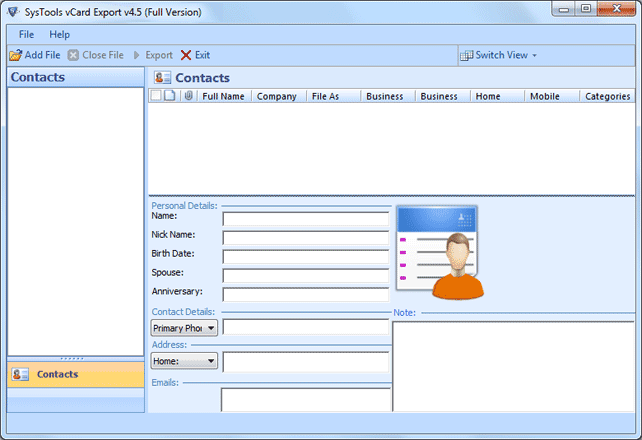
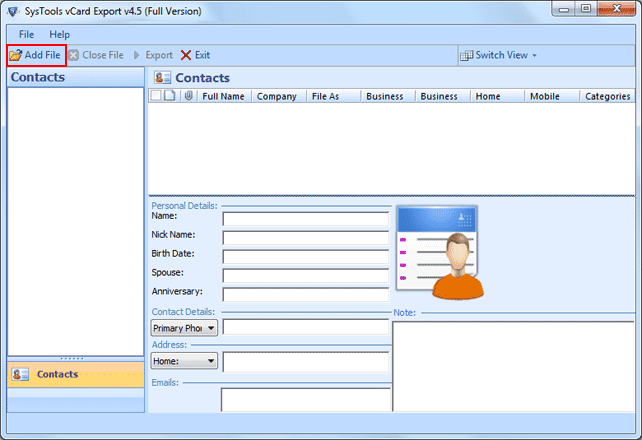
- Click in 'Add File" button at the top-left of the window to browse for the PST file.
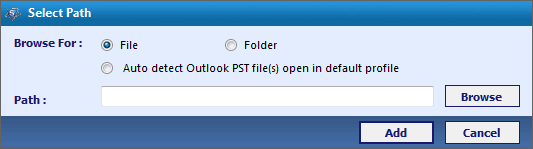
- Select Browse For: 'File' option for selecting known PST file:
OR
If contacts exist in multiple outlook PST files and stored in one folder then just choose the 'Folder' option to browse file location:
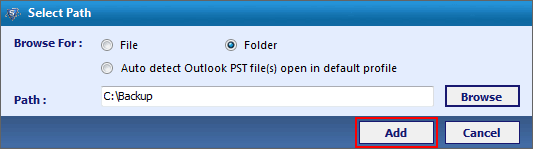
OR
If you are not certain about location where outlook contact exists, just select the auto detection option and software automatically browse to default Outlook PST Location.
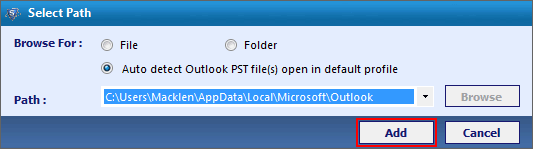
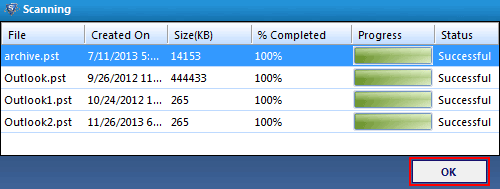
- The software will scan contact from the configured PST file. Wait for the scanning and analyzing process of your outlook PST file to get completed . Click ok to proceed further.
- Now the software will show you the preview of all your contacts.
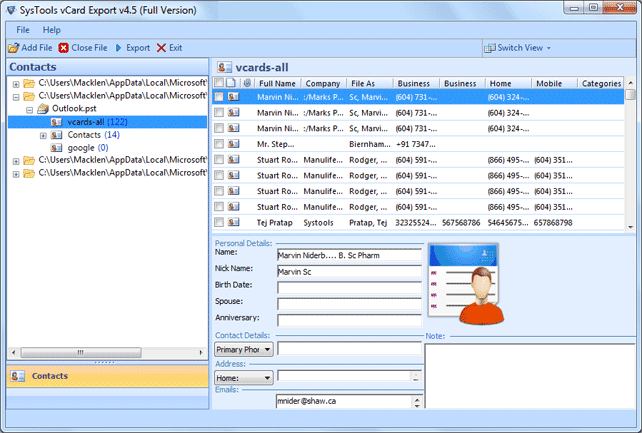
- If you wish to create conversion of specific folder then click the outlook file for which you desire to create conversion; the ool will present a detailed list of all the linked contacts in the right hand side of the screen.
Select all the contacts or the one you want to convert in the desired format. Once you preferred the contact just click on Export button for migration procedure.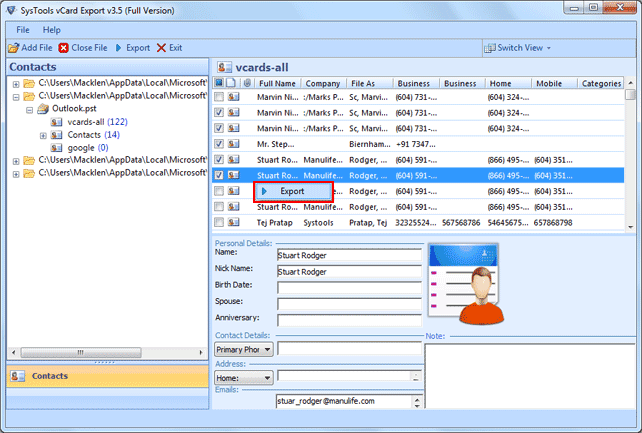
OR
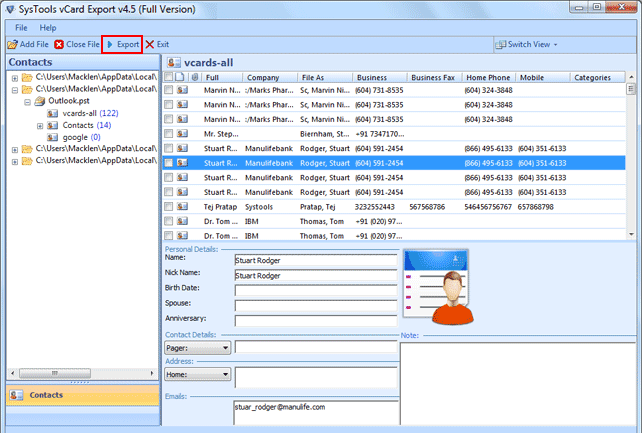
Click on "Export" option of menu bar to direct export all Outlook contacts:
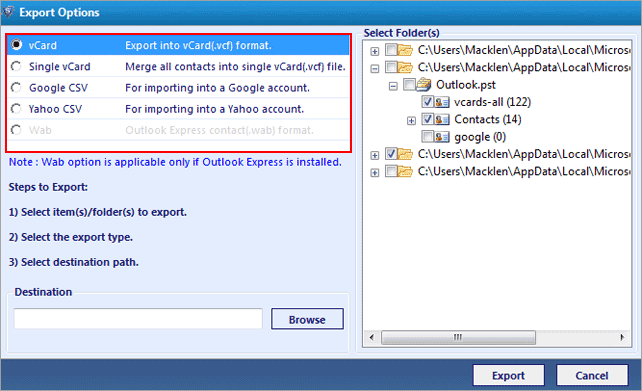
- In this screen, various export options come. Select the type of format that are you interested in. Once selected just provide the location where you want to save converted file. Now click the Export button.
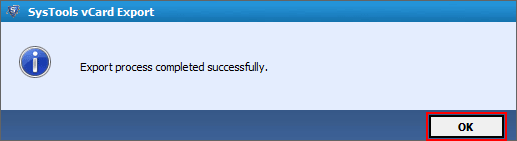
- After conversion the tool will present with the message stating that the conversion procedure was successful. Click "OK".
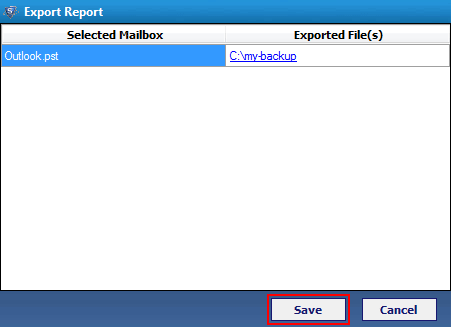
- This screen prompts you if you wish to generate a report of the process. Click "Save" if you want the detailed report else click "Cancel" button and hit "Yes button" when prompt in the next screen.